
v2rayN quick-start guide
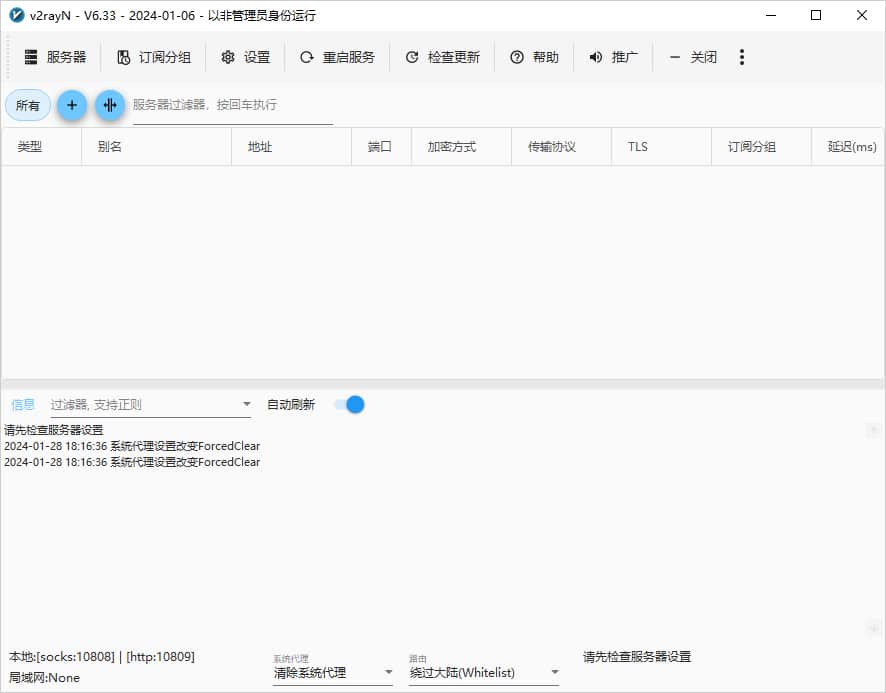
Install the application
Download a package for your system. Extract a ZIP package to a suitable folder and launch the application. On Windows, run v2rayN.exe; its tray icon opens the main window.
Add a server
You need server information or a subscription before connecting. To add a server manually, open Servers and select the matching protocol, such as VMess, VLESS, Shadowsocks or Trojan.
To import a subscription, open Subscription groups, add a group, paste its URL into the address field, save it, then choose Update all subscriptions.
You can also copy a vmess://, vless://, ss:// or trojan:// link and use Import batch URLs from clipboard under Servers. For a QR code, choose Scan QR code on screen.
Connect
Select a server in the main window. From the tray icon, enable Automatically configure system proxy. Choose a routing mode that suits your needs: bypass mainland China, blacklist or global.
Update
Use Check for updates in the main window to update the app, cores or geographic data files.
The screenshots in this guide show the Chinese interface; menu labels may differ in your installation.